Have you stored some files on your Mac computer and would like to access them on an Android device? Since Mac uses a proprietary file system and Android relies on Media Transfer Protocol (MTP), they don't always "talk" to each other natively. To transfer files from Mac to Android, we need "skills". In this article, we've prepared 5 practical approaches, so you can easily move your files.
If you want to complete the file transfer from Mac to Android with ease, you can try this Mac to Android file Transfer software - Samsung Messages Backup. Please do not be deceived by its name, since it can transfer various file types like messages as well as photos, contacts, music, user apps, videos, and so on. Furthermore, it supports most Android devices, such as OnePlus, Google, TCL, Tecno, Vivo, OPPO, Samsung, Honor, itel, realme, iQOO, etc.
- Move files from Mac to an Android phone, including videos, music, pictures, documents, etc.
- Export data from Android to Mac as well, like contacts, call logs, SMS, media files, and more.
- Enable you to preview your Android data on your Mac.
- Allow you to selectively transfer specific files between both devices.
- Back up all Android data to Mac at once, and restore the backup to Android effortlessly.
- USB and Wi-Fi transfer modes are supported.
- Support Android 6.0 or later, including Android 16.
- Mac and Windows versions are available.
Download this Mac and Android file transfer software.


Step 1: Download and install this file transfer software on your Mac computer. Then connect your Android device to the Mac via a USB cable, and launch the program.
Step 2: Activate the USB debugging mode on Android, and then the program will quickly recognize your device. Once connected, you can select a category from the left panel.
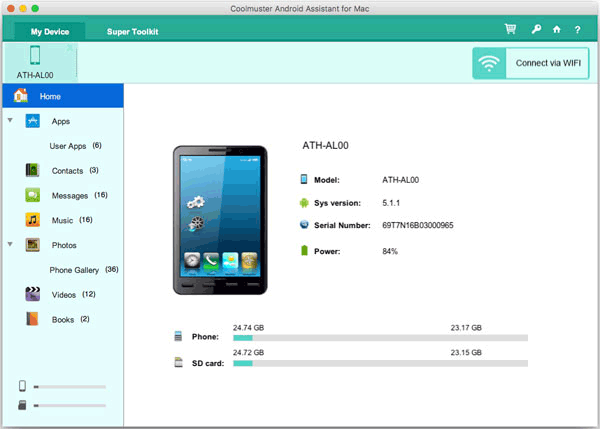
Step 3: Click the "Add" or "Import" icon at the top menu, then select the files from your Mac, and click "OK" to transfer them to your Android device.
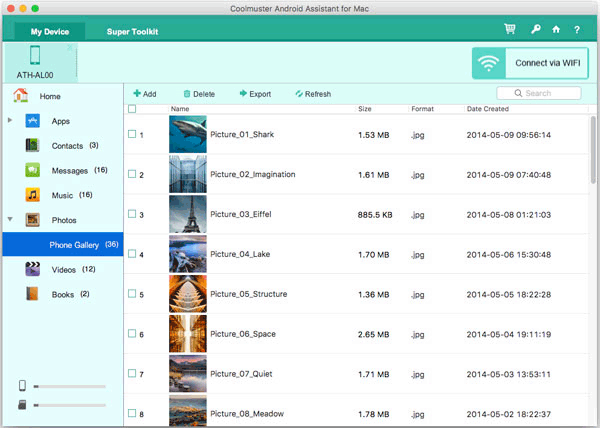
If you find the official Android File Transfer app for Mac to be buggy or outdated, OpenMTP is the superior open-source alternative. It provides a split-pane interface: your Mac files on the left and your Android files on the right.
Step 1: Go to the OpenMTP website and download the software for macOS, and use a USB cable to connect your Android phone to your Mac.
Step 2: After connecting the phone, select the "File transfer" option on the Android device.
Step 3: Open OpenMTP on your Mac, and you'll see your Android phone's internal storage and your Mac folders on the interface. Please select the files on your Mac, and drag and drop them to your Android device.
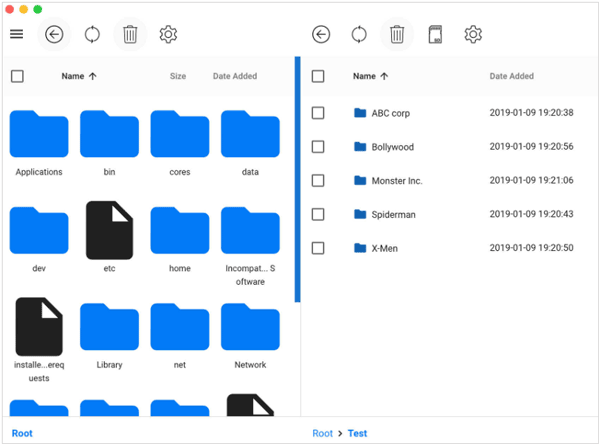
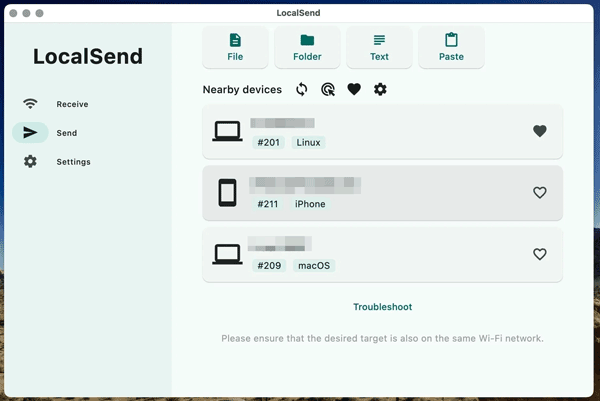
LocalSend is a peer-to-peer file transfer app that allows you to send files without needing an internet connection. It supports cross-platform transfers, making it a perfect option for Mac-to-Android transfers.
Step 1: Install LocalSend on your Mac and Android device by downloading the app from its official website or Google Play Store.
Step 2: Ensure that both your Mac and Android phone are connected to the same Wi-Fi network.
Step 3: Open LocalSend on your Mac and select the files you wish to send. Your Android device will appear as a recipient on the interface. Once the devices are connected, click on the Send button, and the files will be transferred wirelessly.
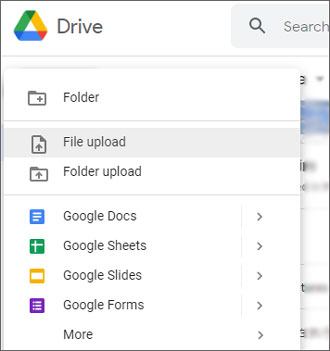
Cloud storage is the "set it and forget it" method. Since every Android user has a Google Account, Google Drive is often the most accessible path. With it, your files are backed up in the cloud without a cable or local network.
Step 1: Download Google Drive on your Android device, then open the app, and log in to your Google Account.
Step 2: Go to drive.google.com on your Mac, sign in with the account that you used on your Android phone, and upload the files from your Mac to your Google Account.
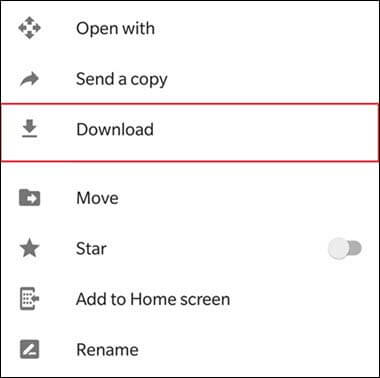
Step 3: Then you can see your uploaded files on your Android device with the Google Drive app. You can download the files to your phone if needed.
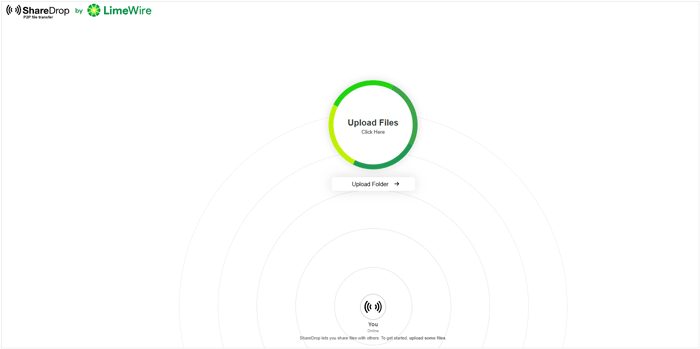
If you don't want to install any apps at all, ShareDrop is a web-based P2P (peer-to-peer) transfer service that works directly in your browser.
Step 1: Go to sharedrop.io on both your Mac browser and your Android browser.
Step 2: You will see two avatars on both screens. One represents "You" and the other represents the other device. On your Mac, click the avatar representing your Android phone.
Step 3: A file picker will open; select the file you want to send. On your Android, a prompt will ask if you want to save the file. Tap "Save".
Q1: Is Android File Transfer available to transfer files between Android and Mac?
The official Android File Transfer app from Google is no longer officially supported and has been hidden or removed from the main Android website. While the app still functions for some users, it is notoriously buggy on modern macOS versions (like Sequoia or Sonoma) and often fails to recognize newer devices.
Q2: Can I use AirDrop to transfer files from a MacBook to my Android device?
No, AirDrop is exclusive to Apple devices, so it does not work with Android devices. You'll need to use alternative methods like Bluetooth, USB, or cloud storage to transfer files from Mac to Android.
Q3: What if my Android device is not recognized by my Mac?
If your Android device is not recognized by your Mac:
There is no longer a "wall" between macOS and Android. You can now transfer files from Mac to Android with USB or wirelessly with the methods above. For heavy users, a dedicated manager like Samsung Messages Backup is ideal. This tool can selectively transfer files or export all the data at once. For casual users, Google Drive or other tools will be sufficient.
Related Articles
[Proven] How to Back Up Android Contacts to Mac with 3 Fast Ways
Bridge the Gap Between Android and Mac: 4 Easy Methods for Device Connection
Clean Junk Files on Android with 5 Hassle-free Methods [Newest Guide]
6 Ways to Transfer Files from Android to PC via Wi-Fi [Full Guide]

Sophie Green, Chief Editor of Samsung-messages-backup website, has been focusing on the realm of Android Recovery, Android Transfer (Backup), Android Device Tips, Phone Clean, and Phone Transfer technologies. Recognized contributions on leading platforms attest to her esteemed expertise and reliability.
Copyright © samsung-messages-backup.com All Rights Reserved.